Table of Contents
- 1. The Triple Experience: Entertainment, Discovery & Digital Detox
- 2. Everyday Workflows
-
3. Main Screen & Link Generator (Go! Tab)
- 3.1 The Generator Button
- 3.2 Generator Status
- 3.3 The Filters Input Box & Character Limit
- 3.4 Creating a New Saved Filter: The Save Button
- 3.5 Modifying Active Filter: The Update Button
- 3.6 Clearing & Unlinking: The Clear Button
- 3.7 Shaking Up the Generator: The Shuffle Button
- 3.8 Canceling Generation (Stop Button)
- 3.9 Free Plan Capabilities
- 4. Managing History (Recent Tab)
- 5. Customizing Your Discoveries (Filters Tab)
- 6. Blocking Unwanted Content (Blacklist Tab)
- 7. Multilingual Web Exploration (Scripts Tab)
- 8. Visual Appearance (Themes Tab)
- 9. Application Setup (Settings Tab)
- 10. Advanced Topics
Quick Start
When you launch RandomSite, you will see 7 navigation tabs organized along the top header bar. Here is a quick overview of what each tab contains:
- Go! — home screen. Optionally type topic keywords into the Filters field and press the primary Go! button to generate a random link.
- Recent — recent links. Website links generated while using the app are recorded here so you can review or reopen them.
- Filters — saved keywords. Store your favorite topics to activate them with a single press.
- Blacklist — blocked links. Maintain a list of websites or web addresses that you want the generator to skip.
- Scripts — writing systems. Adjust the frequency of receiving links across hundreds of world languages.
- Themes — visual styles. Switch between light, dark, and glossy schemes to suit your taste and keep your eyes comfortable.
- Settings — application options. Select the interface language, manage your subscription, and access help resources.
Anytime in RandomSite, press Ctrl+/ or ⌘+/ to view the list of keyboard shortcuts.
1. The Triple Experience: Entertainment, Discovery & Digital Detox
1.1 Three Pillars in One Single Press
Welcome to the complete RandomSite User Guide! What if web browsing could be entertaining, genuinely eye-opening, and a healthy digital detox all at the same time? That is the core idea of RandomSite. Instead of choosing between fun casual entertainment and avoiding commercial algorithmic traps, RandomSite combines pure entertainment, exciting discovery of new web worlds, and an effective digital detox into one seamless, single-press experience.
Why should casual fun and digital health be at odds? Most people open apps like TikTok or play casual games like Solitaire when they want a quick break, a bit of fun, or a moment of relaxation. But social feeds quickly drag you into compulsive scrolling, while commercial search engines bombard you with paid advertisements.
RandomSite brings three powerful pillars together into one effortless action: Entertainment, Discovery, and Detox. Every single press of the central button is fun, revealing, and liberating all at once!
1.2 Pure Entertainment: The Fun of Casual Web Discoveries
Surfing the web with RandomSite feels like opening a digital mystery box, rolling the dice, or shuffling a fresh deck of cards. You press the central 3D button, and in just a few seconds, land on a surprise website. It is effortless, entertaining, and endlessly replayable whenever you have a free minute.
1.3 Exciting Discovery: Uncovering New & Unexpected Worlds
The web is vast, but conventional algorithms shrink your world down to a handful of massive corporate portals. RandomSite opens the doors back up. In one press, you might land on an indie developer's game project, a quiet blog dedicated to antique watches, or a live stock price chart for a random company. And all of this across 41 writing systems covering over 200 languages, letting you truly explore the entire world wide web!
1.4 Digital Detox: Bypassing Commercial Ads & Social Traps
Because every link is generated organically without commercial ad auctions or engagement algorithms, you naturally detox from the noise of the modern web and spend your time engaging with creative content rather than consuming targeted ads or doomscrolling social feeds.
When you search for topics on commercial engines like Google/Bing, the top half of your screen is monopolized by sponsored product ads, commercial pay-for-placement links, and corporate SEO traps. Every link RandomSite generates is based on organic web existence rather than advertising budgets.
Social media feeds — including TikTok, YouTube, or Reddit — are engineered to capture your attention and steer your thoughts. RandomSite gives you an escape hatch. Whenever you slip into mindless scrolling, open RandomSite for a healthy, entertaining detour — whether on these sites or across the real open web.
1.5 Digital Detox: Clean & Private Surfing
Privacy completes the triple experience. RandomSite operates locally on your device. Link generation requires no tracking cookies, user IDs, or external data collection servers. RandomSite never tracks your behavior, builds advertising profiles, or sells data — ensuring your saved filters, blacklist, balance of writing systems, and settings stay strictly private on your device for a stress-free journey.
2. Everyday Workflows
2.1 Pure Surfing
If you want a quick mental break from work or social media, the Pure Surfing workflow requires zero preparation. Simply open RandomSite, make sure the Filters input box on the Go! tab is completely empty, and press the big central button. Leaving the Filters field empty delivers purely random, unbiased web discoveries. This organic approach offers a refreshing digital detox by bypassing commercial targeting algorithms.
2.2 Topic-Focused Organic Surfing
When you are curious about a specific subject, simply type 1–2 keywords (e.g. baking recipes, football or astronomy) into the Filters input box on the Go! tab. Keep your keywords concise: adding too many words narrows the generation pool significantly, increasing the chance of duplicate results or finding no matching pages.
You can also target a specific website by using the site: prefix followed by the website address, such as site:wikipedia.org. RandomSite will focus the generator on that website.
2.3 Bypassing Social Feeds & Storefronts
To browse a social platform (such as Facebook, Instagram, or Pinterest) without its enforced algorithmic feeds, enter its web address with the site prefix in the Filters field (for example, site:x.com) and add no extra words. This delivers random open community posts, completely bypassing paid recommendations and curated personal feeds. Appending keywords lets you focus on specific topics on that platform, though this reintroduces commercial profiling and targeted content.
The same principle applies to digital storefronts and catalog websites. For example, using site:store.steampowered.com/app opens random game pages from the catalog, completely bypassing featured recommendations and top sellers.
2.4 Curating Custom Filter Libraries
As you use RandomSite, you will discover topics you want to revisit regularly. Instead of retyping keywords every time, press the Save button. This creates a permanent saved filter in your Filters list. Next time you want to discover that topic, open the Filters tab, select your saved topic, and press the Use button. You can also append extra refining words directly in the Filters input box to temporarily narrow your filter.
2.5 Filtering Out Unwanted Sites
To keep your web surfing clean and enjoyable, block unwanted sites as you discover them. Whenever a generated link leads to a technical page without content, an ad-heavy site, or a topic you prefer to avoid, open the Recent tab, select the top entry, and press the Add to blacklist button. After that, RandomSite will suppress any matching links, ensuring your future discoveries stay clean.
2.6 Multilingual Web Exploration
Most web platforms confine browsing to your local language, leaving out rich web spaces written in dozens of different writing systems. To discover websites from specific linguistic traditions — such as East Asian, Middle Eastern, or Slavic — open the Scripts tab, adjust the balance, and press the Go! button to route discoveries directly into those authentic cultures.
This also offers an effective digital detox by polluting commercial profiling engines with unpredictable international traffic, confounding behavioral algorithms that track browsing habits.
2.7 Reviewing Recent Links
RandomSite keeps up to 100 of your most recent links in the Recent tab until you close the app. Open this tab at any time to review your history, select any link, and press the Open button to reopen a page.
3. Main Screen & Link Generator (Go! Tab)
3.1 The Generator Button
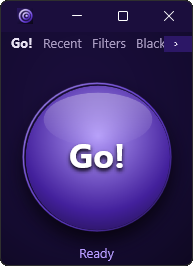
At the top of the Go! tab is a prominent button. Pressing this button initiates a fresh random link generation sequence balanced by your active filter and writing systems to immediately fetch and open an unexpected web page in your default browser.
The button operates in two states: when ready, it displays Go!. Once pressed, it locks to prevent accidental and spam clicks, displaying seconds while generating your link and after passing it to your browser, until the button returns to its ready state for your next press.
Since every link opens directly in your default web browser, you can easily share discovered pages with friends using standard browser tools.
3.2 Generator Status
Directly below the button, a status label displays real-time progress:
- Starting — Generator initialization upon opening the application or after pressing the Shuffle button.
- Ready — Ready for link generation.
- Spinning — Generating a link.
- Delaying — Pause to prevent accidental and spam clicks.
- Resuming — Refreshing state after an hour of inactivity.
- Retrying — Recovery after error or being stopped.
If generation cannot be completed, the status label indicates the reason:
- No site — No link could be found. Broaden or clear keywords in the Filters field, check the balance of writing systems in the Scripts tab and active entries in the Blacklist tab, or press the Shuffle button.
- Script not supported — The entered text contains characters from an unsupported writing system. Edit or clear the Filters field.
- Stopped — Generation was manually halted. Press the Go! button to try again, or press the Shuffle button and then the Go! button.
- Network error — Internet connection issue. Check your connection or press the Go! button to retry.
- Application error — An unexpected internal issue occurred. Restart the application.
3.3 The Filters Input Box & Character Limit
Below the status line is the Filters input field. You can type a single keyword or short phrases up to 120 characters long. When a saved filter is active, you can append additional refining words directly into this box to temporarily narrow down generation. While multiple keywords are supported, broader terms yield the most diverse discoveries; overly specific multi-word filters narrow the generation pool and may cause repetitive or empty results. Leaving the box completely empty restores pure, unbiased link generation free from algorithmic targeting.
If the text you enter in the Filters field matches a saved filter, RandomSite automatically links it. The contents of the input field and its link to a filter, if it exists, are automatically preserved when closing the application and restored upon next launch.
3.4 Creating a New Saved Filter: The Save Button
Press the Save button below the input field to save the entered text to your Filters list and set it as active, so you can reuse topic keywords without retyping them each time.
3.5 Modifying Active Filter: The Update Button
When you change the text of an active saved filter in the Filters field, the Update button becomes active to update that filter with your changes. The Save button also becomes active, allowing you to save the modified text as a new filter instead.
3.6 Clearing & Unlinking: The Clear Button
Press the Clear button to empty the Filters input box immediately and unlink any active filter. Your generator returns to a clean, unrestricted state.
3.7 Shaking Up the Generator: The Shuffle Button
If the generator gets stuck in a loop, press the Shuffle button at the bottom of the main screen to reset the cycle and restore fresh results, regardless of whether the Filters field has text or is empty.
3.8 Canceling Generation (Stop Button)
If generation takes longer than 12 seconds, the Stop button appears in place of the status label. Pressing it cancels the process instantly and returns the app to standby mode.
3.9 Free Plan Capabilities
Includes all features described above, except:
- Saving new custom filters with the Save button.
- Updating active filters with the Update button.
4. Managing History (Recent Tab)
4.1 Tracking Recent Links
The Recent tab automatically gathers your recent links while the app is open. Every time RandomSite successfully generates a website link, that link is added to the top of your Recent list along with its title and web address. The list stores up to 100 recent discoveries, ensuring that even if you accidentally navigate away from a fascinating website, your discovery is never lost.
4.2 Reopening Discovered Links
Reopening any link from your Recent history is quick and easy. Select an entry and press the Open button to launch the web link in your default browser.
4.3 Adding Links to Filters
When you discover an interesting website and want to explore more content from it, select the link in your Recent list and press the Add to filters button. RandomSite opens the editor dialog with pre-filled address and prefix (e.g. site:archive.org), allowing you to change the filter and/or customize a name and save it. If that filter is already saved or your filter list is full, the button is disabled to prevent duplicate entries.
4.4 Adding Links to Blacklist
Whenever a generated link leads to a contentless technical page, an ad site, or a topic you prefer to avoid, select it in your Recent list and press the Add to blacklist button. RandomSite opens the editor dialog with the address pre-filled, allowing you to refine the entry, add an optional description note, and save it. If that address is already blocked or your blacklist is full, the button is disabled to prevent duplicate entries.
4.5 Free Plan Capabilities
Includes all features described above, except:
- Adding links to saved filters with the Add to filters button.
- Adding links to blacklist with the Add to blacklist button.
5. Customizing Your Discoveries (Filters Tab)
5.1 Understanding Topic Filters
Filters are saved topics that let you organize your interest areas. Think of your Filters tab as a personal bookshelf of curated topics — such as Cooking, Paris, or Quantum Physics. You can also save your favorite social networks and digital storefronts as filters in the form of site:example.com for surfing and digital detox. Duplicate filters are not allowed, ensuring each topic in your collection is unique.
A filter can have a display name to make the list clearer. In this case, the filter name is displayed with a quotation mark indicator (❞), while its keywords appear at the bottom of the window. Display names can serve as category labels, allowing different filters to share the same name.
Activating a filter instructs the link generator to focus its discoveries on that topic. Only one filter can be active at a time. The linked filter is preserved across application restarts.
5.2 Activating Filters (Use Button)
To start surfing using one of your saved filters, select it and press the Use button. RandomSite will activate the filter, link it to your input field by replacing its content, and switch directly to the Go! tab ready to generate. In the list, any currently linked filter is marked with a vertical bar on the left.
5.3 Adding Filters (Add Button)
To create a new filter, press the Add button. The Add filter dialog will appear requesting two fields:
- Filter — The topic keyword or phrase (up to 120 characters max). If you recently generated a website link, this field is automatically pre-filled with its address (e.g.
site:amazon.com). - Name — An optional friendly display label (up to 120 characters max).
Enter the keywords and optional name and press the Save button. When you add an existing filter, RandomSite merges completely identical filters automatically. If the name differs, the Duplicate filter dialog appears, presenting both options so you can choose which one to keep.
Your collection can store up to 100 filters. If the limit is reached, a notification informs you that the list is full.
5.4 Editing Existing Filters (Edit Button)
To modify an existing filter, select the entry and press the Edit button to open the pre-filled Edit filter dialog, allowing you to update keywords or display name.
5.5 Removing Filters (Delete Button)
If you no longer need a filter, select it in your list and press the Delete button. A confirmation dialog will ask you to confirm before removing the entry from your collection.
5.6 Sharing Filters with Friends
You can easily share your saved topic collection with friends by sending them your filters.txt file located in your RandomSite data folder (see section 10.2), or by copying individual lines from your file into theirs.
5.7 Free Plan Capabilities
Includes all features described above, except:
- Adding new custom filters with the Add button.
- Editing existing filters with the Edit button.
- Removing filters with the Delete button.
The Free plan includes built-in demo filters to see how filtering works.
6. Blocking Unwanted Content (Blacklist Tab)
6.1 Understanding Website Blocking
The Blacklist tab is your defense against unwanted web content. By adding whole website addresses or a fragment of an address to your blacklist, you ensure that RandomSite skips any link containing that text anywhere in its address during generation. Duplicate entries are not allowed, ensuring each address/fragment in your collection is unique.
Website addresses appear directly in the list so you can identify blocked sites at a glance, while optional description notes are displayed at the bottom of the window. When an entry has a note, it is marked with a quotation mark indicator (❞). Notes can serve as category labels, allowing different entries to share the same note.
Unlike filters where only one topic is active at a time, all enabled blacklist entries apply simultaneously.
6.2 Temporarily Disabling Entries (On/Off Toggle)
Sometimes you may want to disable a blacklist entry without deleting it. To do so, select the entry and press the Off button. To turn it back, select the entry and press the On button. Disabled entries appear dimmed in the list.
6.3 Adding Entries (Add Button)
To block a website address or its fragment, press the Add button on the Blacklist tab. The Add entry dialog will appear requesting two fields:
- Address contains — The target website address or its fragment (up to 512 characters max). If you recently generated a website link, this field is automatically pre-filled with its address (e.g.
https://unwanted-site.com/page/ad-banner). Unlike filters, the full address is inserted. You can remove the unnecessary part to make it more general, or leave it as is. - Note — An optional note (up to 120 characters max).
Enter the address or fragment and optional note and press the Save button. When you add an existing blacklist entry, RandomSite merges completely identical entries automatically. If the note differs, the Duplicate entry dialog appears, presenting both options so you can choose which one to keep.
Your blacklist can hold up to 100 active entries. If the limit is reached, a notification informs you that the list is full.
6.4 Editing Existing Entries (Edit Button)
To modify an existing entry, select it and press the Edit button to open the pre-filled Edit entry dialog, allowing you to change its address/fragment or update your note.
6.5 Removing Entries (Delete Button)
If you no longer need a blacklist entry, select it in your list and press the Delete button. Confirm the deletion dialog to remove the entry from your collection and allow links containing that address or fragment again. Before deleting an entry permanently, consider turning it Off first to ensure you no longer need it.
6.6 Sharing Blacklist with Friends
You can easily share your saved blacklist collection with friends by sending them your blacklist.txt file located in your RandomSite data folder (see section 10.2), or by copying individual lines from your file into theirs.
6.7 Free Plan Capabilities
Includes all features described above, except:
- Adding entries to blacklist with the Add button.
- Editing existing entries with the Edit button.
- Removing entries with the Delete button.
The Free plan includes a built-in demo entry to see how blacklisting works.
7. Multilingual Web Exploration (Scripts Tab)
7.1 Understanding Writing Systems
The global web houses vast cultural treasures, knowledge, and entertainment on websites written in hundreds of languages. All these languages are expressed through writing systems (scripts) — the alphabets and character sets found worldwide (Latin, Hanzi, Devanagari, and many others). RandomSite organizes language discovery by scripts. Supporting 41 distinct scripts covering over 200 languages — encompassing the entire web — ensures you can discover authentic web content from across the globe.
7.2 Adjusting Script Weights
In RandomSite, a script weight is a setting that determines how frequently websites in a given script appear in your discoveries. By default, these weights reflect the real-world prevalence of each script, but you can focus the link generator on one or more of them. Weights shape your discoveries during open surfing or on multilingual websites (using site:), whereas typing keywords into the Filters field focuses generation on the script of those keywords.
In the Scripts tab, adjust any slider (0 to 100) to increase/decrease its weight. The overall balance dynamically shifts with each change, allowing you to prioritize a specific script, set its weight to 100 to focus exclusively on it, or to zero to skip it completely.
Tip: To focus on only a few scripts, set one of them to 100 to instantly reset all other weights to zero. Then raise the sliders for the other desired scripts to your preferred levels.
7.3 Sorting & Resetting Weights
Use the buttons to manage your list:
- Sort by name — Press to arrange by name.
- Sort by weight — Press to arrange by current weight.
- Reset — Press to restore weights back to default settings.
7.4 Free Plan Capabilities
Includes all features described above, except:
- Adjusting script weights using sliders.
- Resetting script weights with the Reset button.
8. Visual Appearance (Themes Tab)
8.1 Themes Overview
The Themes tab allows you to customize RandomSite's visual presentation to suit your taste, match your environment, and reduce eye strain. Activate any available theme in the list to apply that visual style immediately. The currently active theme is marked with a vertical bar on the left. Your choice is automatically saved and restored whenever you open RandomSite.
8.2 System Theme Alignment
Activating the System theme instructs RandomSite to synchronize with your operating system's visual settings automatically.
8.3 Glossy Molded Themes
The Glossy Molded Dark and Glossy Molded Light themes feature glossy 3D highlights and crisp legible text, with the former offering deep dark background tones for nighttime browsing and the latter offering a clean light backdrop for daytime surfing.
8.4 Free Plan Capabilities
Includes all features described above, except:
- Using any theme other than the System theme.
9. Application Setup (Settings Tab)
9.1 Configuration Options Overview
The Settings tab controls application options — interface language, window mode, account subscription, and access to help resources.
9.2 Changing Interface Language
RandomSite supports a wide range of interface languages. On first launch, RandomSite attempts to match your operating system's display language (falling back to English if unavailable). You can switch to any supported language at any time. Select your preferred language from the drop-down list, or quickly jump to it by typing letters of its name in the input field at the top of the list.
Note that changing the language requires restarting the application for the new language to take effect. Your chosen language is automatically saved and retained across restarts.
9.3 Always-on-Top Mode
On desktop platforms, toggle the Always on top switch on the Settings tab to keep the RandomSite window floating above other applications. You can freely resize the window down to its minimum size, keeping a small footprint on your screen alongside your web browser or work tools.
9.4 Account & Subscription
The Account section on the Settings tab displays your subscription status, manages your Patreon account connection, and controls active entitlements across devices.
RandomSite integrates with Patreon to unlock Premium privileges (including custom filters, website blocking, script balancing, and tactile molded themes). Press the Connect button to link your Patreon account in your browser, or Disconnect to remove the connected account from your device. When disconnected, local authorization tokens and account identifiers are completely cleared.
Depending on your current plan and pledge state, RandomSite displays dynamic action buttons:
- Get subscription — Appears when no subscription is active, opening the Patreon tier page to pledge support.
- Renew subscription — Appears if your membership has lapsed, expired, or encountered a payment decline, directing you to update payment information on Patreon.
- Manage subscription — Appears when your Premium subscription is active, opening your Patreon account settings to view or adjust your pledge.
When an account is connected, a dedicated Check button allows manual status re-verification. When pressed, an activity indicator runs alongside a live elapsed seconds counter while verifying your session and entitlement on the server, followed by a brief cooldown delay to prevent spamming.
The application clearly reports your active subscription condition:
- Active — Valid Patreon pledge entitled to Premium features.
- Expired — Subscription ended or pledge was canceled.
- Declined — Payment transaction was declined by Patreon; updating your payment method on Patreon resolves this.
- Never Purchased — Patreon account connected without an entitled tier.
- Not Connected — Free plan mode with no linked account.
- Error — Temporary network issue or verification failure; retry using the Check button.
Single-Device Policy and Active Sessions: Each Premium subscription entitles active use on one device at a time. Launching RandomSite on a new device or re-authenticating claims the active session for that device. If a device already holds an active session and another device takes it over, future link generations on the earlier device will detect the conflict and transition back to the Free plan. If you press the Check button on a device that already considers itself active while another device holds the session, a session conflict is reported. To reclaim active status on any device, simply relaunch the app or press Check when not in an active session state.
9.5 Getting Help & Support
The Help section on the Settings tab provides direct action buttons:
- Open the official application page in the store or download portal (App Page button).
- View the list of keyboard shortcuts (Keyboard Shortcuts button).
- Open the user guide (User Guide button).
- Read the privacy policy (Privacy Policy button).
- Email customer support (Support button).
The Support button prepares an email draft for technical issues, translation suggestions, feature requests, or general feedback.
10. Advanced Topics
10.1 Advanced Blacklist Pattern Matching & Subdomain Rules
The Blacklist tab uses substring matching across generated URL addresses. Adding a main website address (e.g. example.com) automatically suppresses all associated subdomains (such as blog.example.com or shop.example.com) as well as subpages. You can also specify URL path fragments to filter out unwanted URL structures.
Each entry is checked as a single continuous substring without spaces.
10.2 Local File Storage & Manual Editing
RandomSite stores your custom filters and blacklist entries locally on your device in plain text format with UTF-8 encoding (such as Documents\RandomSite on Windows). On first launch, RandomSite helps you locate or select your storage folder so you always know where your saved files reside.
Your storage folder contains two files:
filters.txt— Stores saved filters.blacklist.txt— Stores blacklist entries.
You can view and edit filters.txt or blacklist.txt directly in any text editor. You can add, edit, or delete entries manually (up to 100 entries per file, up to 256 KB total file size). Inside these files, every line contains a value, optionally followed by -- with surrounding spaces and a name or note. Manual edits take effect the next time you launch RandomSite.
10.3 Disabling Blacklist Entries
When you toggle a blacklist entry Off using the On / Off button, the entry in your blacklist.txt file receives a // prefix followed by spaces. By adding or removing this prefix in the file, you can disable or enable entries.
10.4 Files Content Validation
If manual file editing introduces formatting errors or exceeds limits, RandomSite launches with an error message. In this case, the file is not loaded, and diagnostic markers are appended at its bottom:
#invalid— Lists invalid line numbers grouped by specific error reasons. If an error indicates invisible characters, delete the affected line completely and retype its text manually.#duplicate— Lists duplicate line numbers pointing to their original entries.
Open the file, fix or remove the indicated lines, and save — diagnostic markers will clear automatically.
Happy surfing!